> ## Documentation Index
> Fetch the complete documentation index at: https://felix.so/docs/llms.txt
> Use this file to discover all available pages before exploring further.
# Preview
> Review the steps Felix generated before running your workflow.
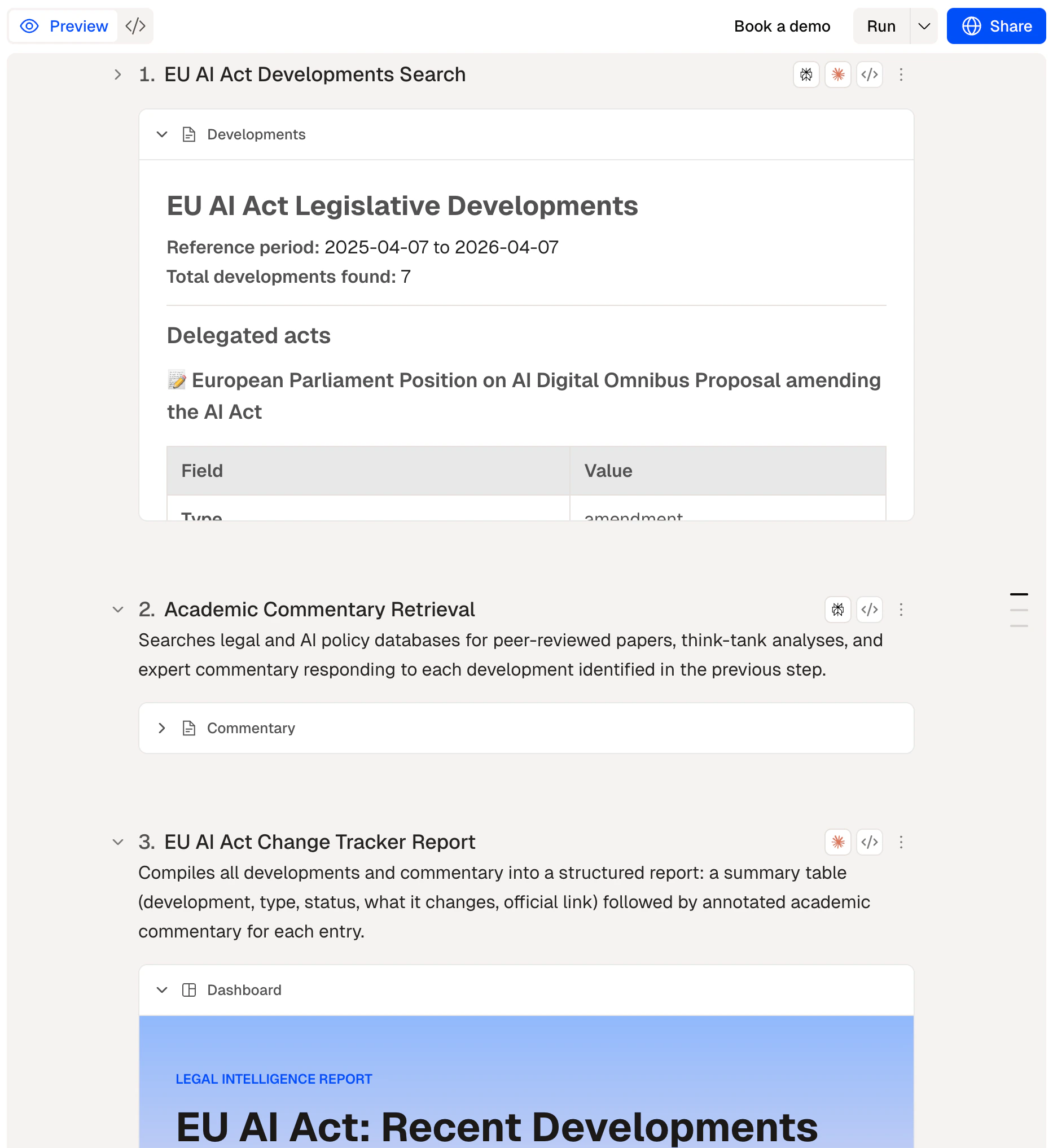
After Felix builds your workflow, you'll see each step laid out in sequence. Preview is where you check that the steps match your intent before executing anything.
## What you'll see
Each step shows:
* **The description** — the plain-language instruction you provided or that Felix generated from your conversation
* **The generated code** — the underlying code Felix wrote to execute the step (expandable if you want to inspect it)
* **The connector** — the service the step reads from or writes to, shown as an `@mention`
Steps are shown in execution order. Review them top to bottom.
 ## What to check
Before running, confirm:
* Each step does what you intended
* The connectors referenced are the ones you want to use
* Any steps that send, publish, or delete have a **Human Checkpoint** before them
If anything looks wrong, write a follow-up message into the chat. You can also click on the description of the step and update it - Felix regenerates the code automatically.
## Adding a Human Checkpoint
To add a Human Checkpoint between steps, prompt the agent and explain where you want to add a checkpoint and describe the approval or input you need.
```
Review the generated summary and approve before sending to @Slack
```
Felix generates a pause that surfaces the output for your review and waits for your confirmation before continuing.
## Tips
* **Expand the code view** if you want to verify exactly what a step does — useful for steps that write or delete data.
* **Check connector references.** If a step uses `@GoogleDrive`, confirm it's connected to the right account in [Connectors](/docs/connectors/overview).
* **Run a single step first** if you're unsure about it. You can test individual steps before running the full workflow.
Execute your workflow
Add review gates
How steps work
## What to check
Before running, confirm:
* Each step does what you intended
* The connectors referenced are the ones you want to use
* Any steps that send, publish, or delete have a **Human Checkpoint** before them
If anything looks wrong, write a follow-up message into the chat. You can also click on the description of the step and update it - Felix regenerates the code automatically.
## Adding a Human Checkpoint
To add a Human Checkpoint between steps, prompt the agent and explain where you want to add a checkpoint and describe the approval or input you need.
```
Review the generated summary and approve before sending to @Slack
```
Felix generates a pause that surfaces the output for your review and waits for your confirmation before continuing.
## Tips
* **Expand the code view** if you want to verify exactly what a step does — useful for steps that write or delete data.
* **Check connector references.** If a step uses `@GoogleDrive`, confirm it's connected to the right account in [Connectors](/docs/connectors/overview).
* **Run a single step first** if you're unsure about it. You can test individual steps before running the full workflow.
Execute your workflow
Add review gates
How steps work