> ## Documentation Index
> Fetch the complete documentation index at: https://felix.so/docs/llms.txt
> Use this file to discover all available pages before exploring further.
# Run
> Execute your workflow and review what happened.
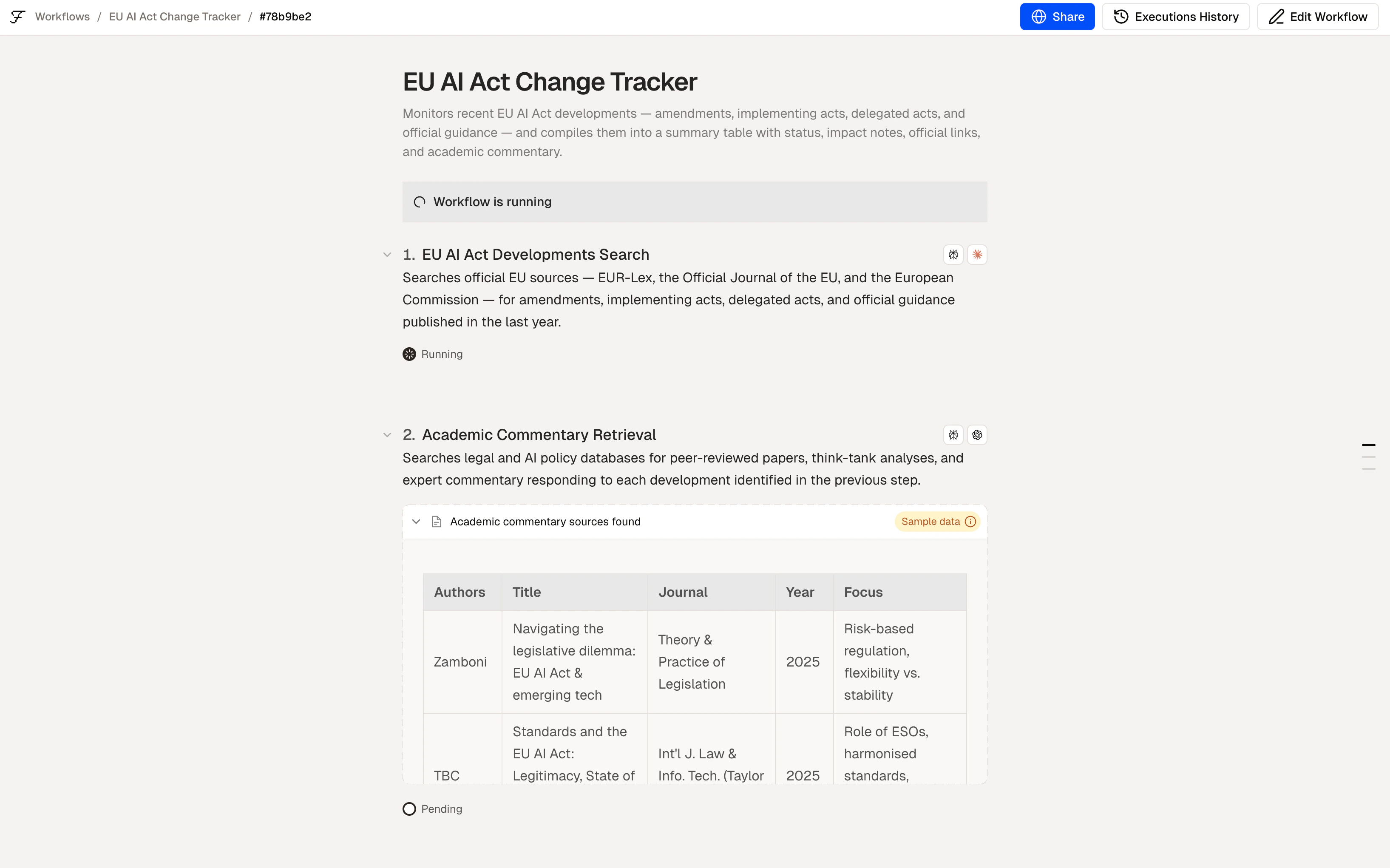
Once you're happy with the steps in Preview, click **Run** to execute. Felix processes each step in sequence and logs everything as it goes.
## What happens during a run
Felix executes each step in order. For each step you'll see:
* **Status** — running, complete, or failed
* **Output** — the data or result the step produced
* **Log** — a record of what the step did and what it received
If your workflow includes a **Human Checkpoint**, execution pauses at that step and waits for your input before continuing.
 ## Reading the output
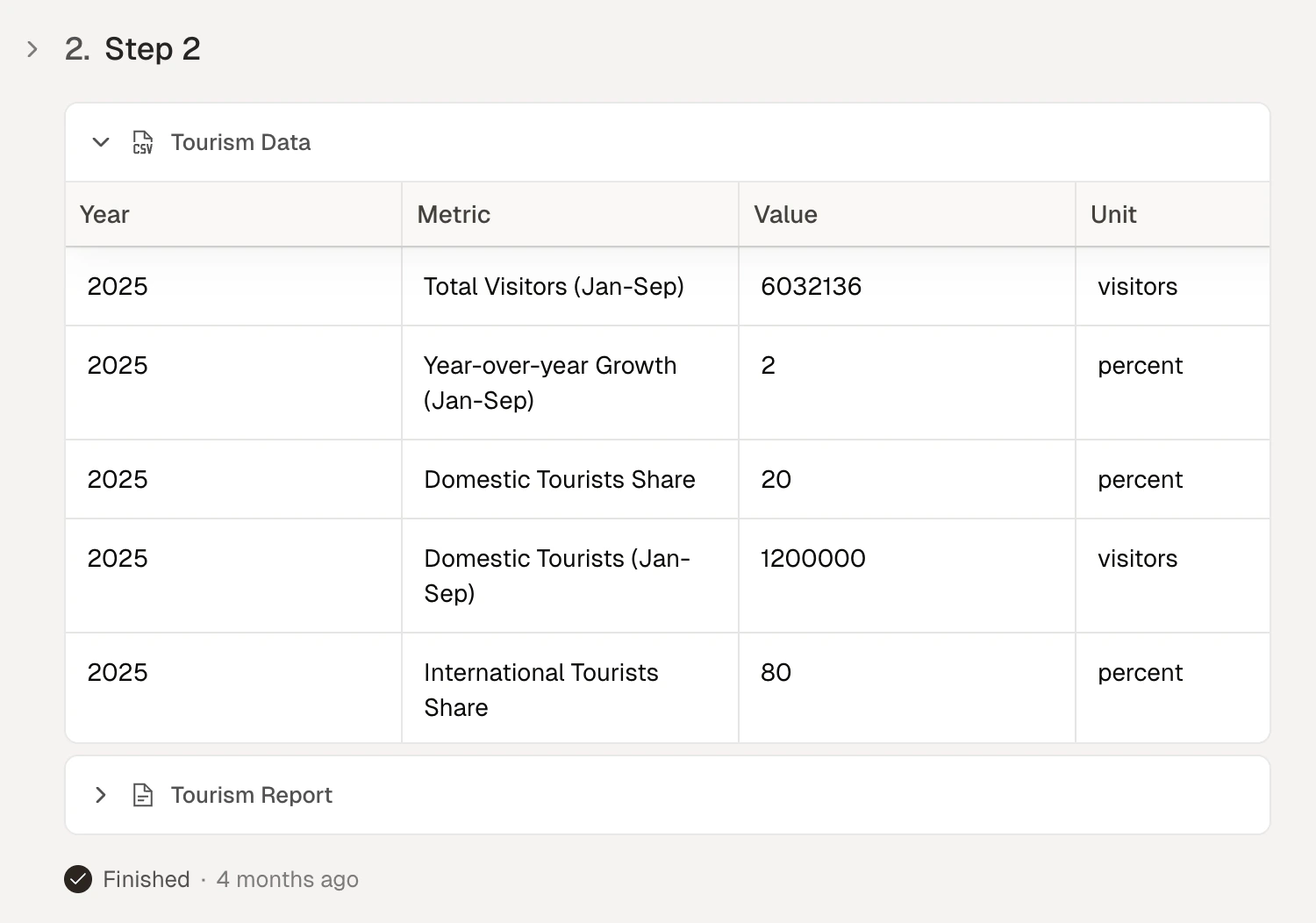
When a run completes, you'll see the final output of your workflow — a file, a table, a document, a notification, or whatever your last step produces.
You can also expand any step to see its individual output. This is useful for debugging or verifying that intermediate steps processed data correctly.
## Reading the output
When a run completes, you'll see the final output of your workflow — a file, a table, a document, a notification, or whatever your last step produces.
You can also expand any step to see its individual output. This is useful for debugging or verifying that intermediate steps processed data correctly.
 ## If a step fails
Felix shows you exactly which step failed and why. Common causes:
* **Connector not authorised** — the connected service needs re-authentication. Go to [Connectors](/docs/connectors/overview) to reconnect.
* **Missing input** — the step expected data from a previous step that didn't produce it. Check the previous step's output.
* **Description too vague** — the step description didn't give Felix enough to work with. Click the step, update the description, and run again.
You don't need to re-run the entire workflow after fixing a step. Felix can re-run from the failed step onwards.
## Run types
From the builder you can run your workflow in three ways:
* **Run once** — executes immediately on the current input
* **Schedule** — sets the workflow to run automatically at a set time or interval
* **Batch run** — processes multiple items through the workflow in one run
See [Running](/docs/running/overview) for a full guide to each run type.
## Tips
* **Test with a small sample first.** Before running a batch of 1,000 documents, run with one to confirm the output is correct.
* **Check Human Checkpoint notifications.** If a run is paused, Felix will notify you. The run waits until you respond.
* **Use logs to debug.** If a step produces unexpected output, expand its log to see exactly what data it received and what it did with it.
Share with your team
Scheduled and batch runs
How execution pauses and resumes
## If a step fails
Felix shows you exactly which step failed and why. Common causes:
* **Connector not authorised** — the connected service needs re-authentication. Go to [Connectors](/docs/connectors/overview) to reconnect.
* **Missing input** — the step expected data from a previous step that didn't produce it. Check the previous step's output.
* **Description too vague** — the step description didn't give Felix enough to work with. Click the step, update the description, and run again.
You don't need to re-run the entire workflow after fixing a step. Felix can re-run from the failed step onwards.
## Run types
From the builder you can run your workflow in three ways:
* **Run once** — executes immediately on the current input
* **Schedule** — sets the workflow to run automatically at a set time or interval
* **Batch run** — processes multiple items through the workflow in one run
See [Running](/docs/running/overview) for a full guide to each run type.
## Tips
* **Test with a small sample first.** Before running a batch of 1,000 documents, run with one to confirm the output is correct.
* **Check Human Checkpoint notifications.** If a run is paused, Felix will notify you. The run waits until you respond.
* **Use logs to debug.** If a step produces unexpected output, expand its log to see exactly what data it received and what it did with it.
Share with your team
Scheduled and batch runs
How execution pauses and resumes