> ## Documentation Index
> Fetch the complete documentation index at: https://felix.so/docs/llms.txt
> Use this file to discover all available pages before exploring further.
# Quickstart
> Build your first workflow in a few minutes.
This page walks you through creating a workflow from scratch — from describing your process to running it for the first time.
## Before you start
Sign in at [felix.so](https://felix.so). Once logged in, you'll land on the **homepage**, where you can create a new workflow and see your recent workflows or templates.
If you want to connect a third-party service before building — a database, spreadsheet, or AI model — see [Connectors](/docs/connectors/overview) first. You can also connect them mid-build when Felix prompts you.
## 1. Create a new workflow
On the homepage, describe what you want to automate in the **prompt** field.
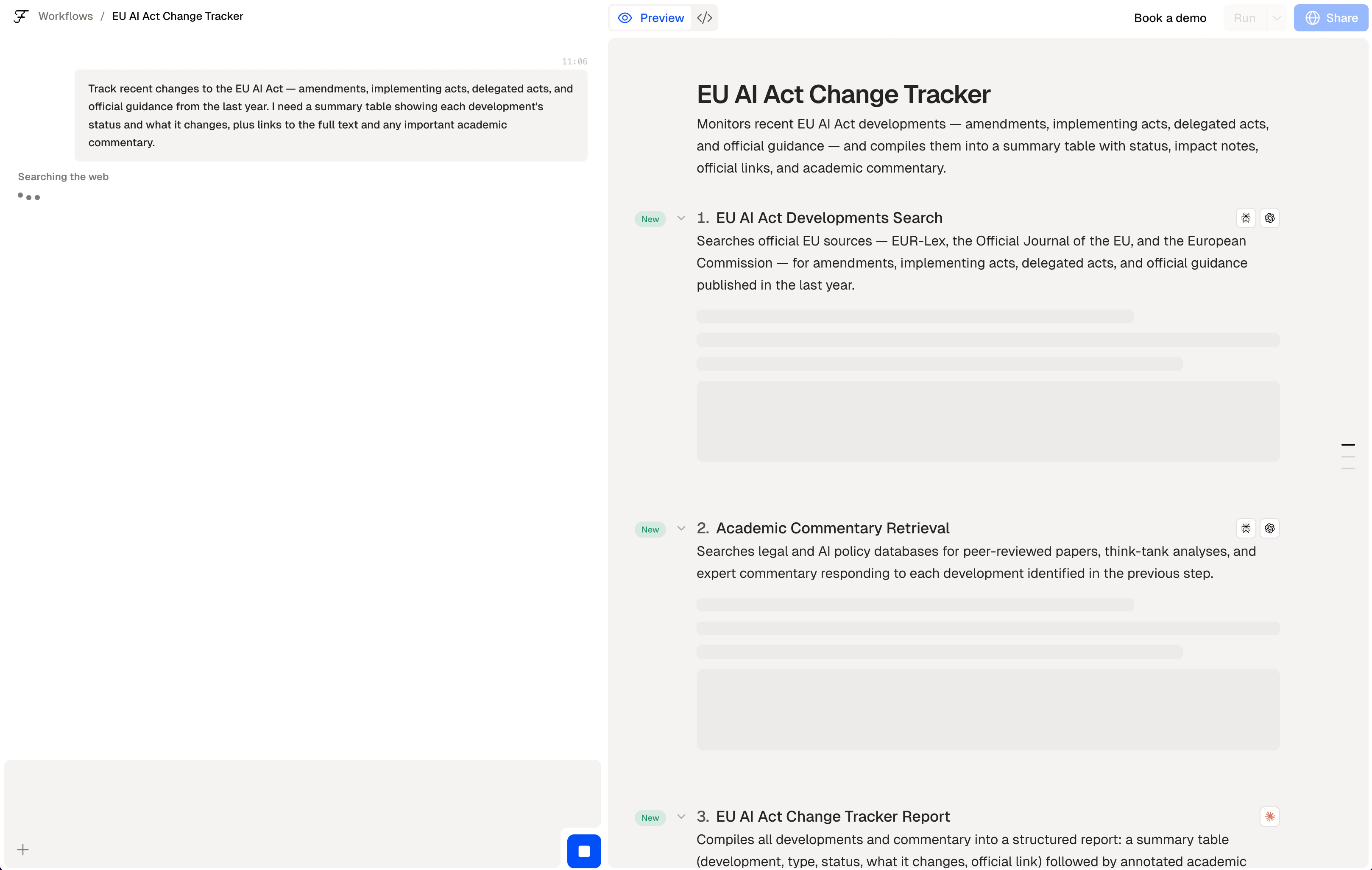
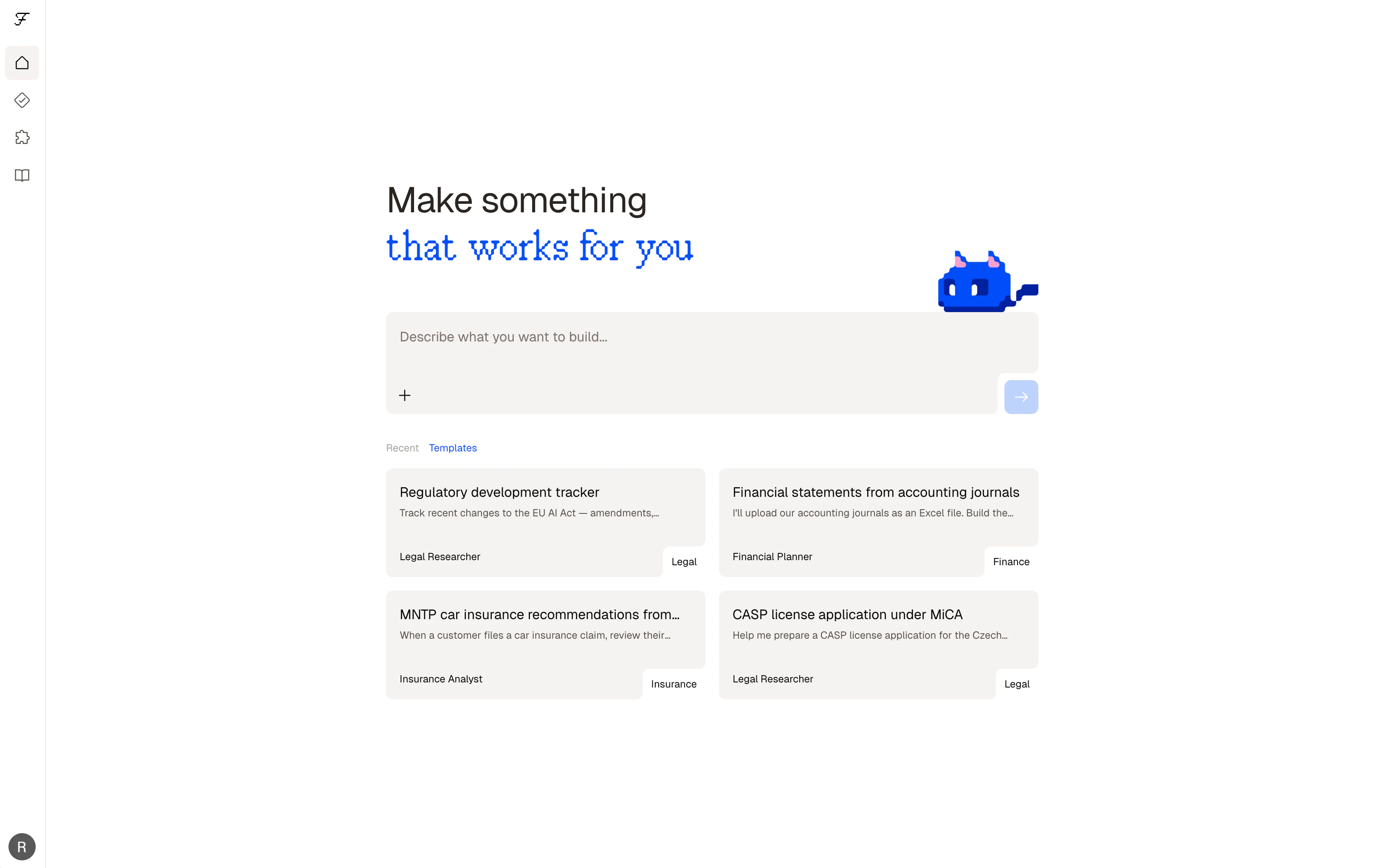 Submit the prompt. You're redirected to the **workflow detail** view, where Felix processes your instructions, asks follow-up questions, and builds the workflow.
 ## 2. Describe your process
In the chat, continue the conversation — your homepage prompt is already the first message. Add detail, answer Felix's questions, or refine the goal in plain language. Don't worry about being precise — Felix will ask follow-up questions to fill in any gaps.
A good first description explains:
* What you're working with (documents, data, emails, records)
* What you want to happen to it
* Where the output should go
| Too vague | Specific enough to build from |
| -------------------- | -------------------------------------------------------------------------------------------------------------- |
| Process my contracts | Extract the key dates, parties, and termination clauses from uploaded contract PDFs and output a summary table |
Felix will ask follow-up questions if it needs more detail. Answer them as you would explain the process to a colleague.
## 3. Review the steps
Once Felix has enough to build, it generates your workflow as a sequence of steps. Each step does one thing — fetching data, processing a document, calling a service, or waiting for your input.
Review each step before running. You can:
* Edit a step's description to adjust what it does
* Add a new step by typing below the last one
* Add a **Human Checkpoint** to pause execution at any point for your review
## 4. Connect your tools
If a step requires an external service, Felix will prompt you to connect it. Click the `@mention` in the step and follow the authentication flow.
Connected services are saved to your account and available across all your workflows.
## 5. Run it
Click **Run** to execute your workflow. During a run you'll see:
* Each step processing in sequence
* Outputs produced at each step
* A full log of what happened
## 2. Describe your process
In the chat, continue the conversation — your homepage prompt is already the first message. Add detail, answer Felix's questions, or refine the goal in plain language. Don't worry about being precise — Felix will ask follow-up questions to fill in any gaps.
A good first description explains:
* What you're working with (documents, data, emails, records)
* What you want to happen to it
* Where the output should go
| Too vague | Specific enough to build from |
| -------------------- | -------------------------------------------------------------------------------------------------------------- |
| Process my contracts | Extract the key dates, parties, and termination clauses from uploaded contract PDFs and output a summary table |
Felix will ask follow-up questions if it needs more detail. Answer them as you would explain the process to a colleague.
## 3. Review the steps
Once Felix has enough to build, it generates your workflow as a sequence of steps. Each step does one thing — fetching data, processing a document, calling a service, or waiting for your input.
Review each step before running. You can:
* Edit a step's description to adjust what it does
* Add a new step by typing below the last one
* Add a **Human Checkpoint** to pause execution at any point for your review
## 4. Connect your tools
If a step requires an external service, Felix will prompt you to connect it. Click the `@mention` in the step and follow the authentication flow.
Connected services are saved to your account and available across all your workflows.
## 5. Run it
Click **Run** to execute your workflow. During a run you'll see:
* Each step processing in sequence
* Outputs produced at each step
* A full log of what happened
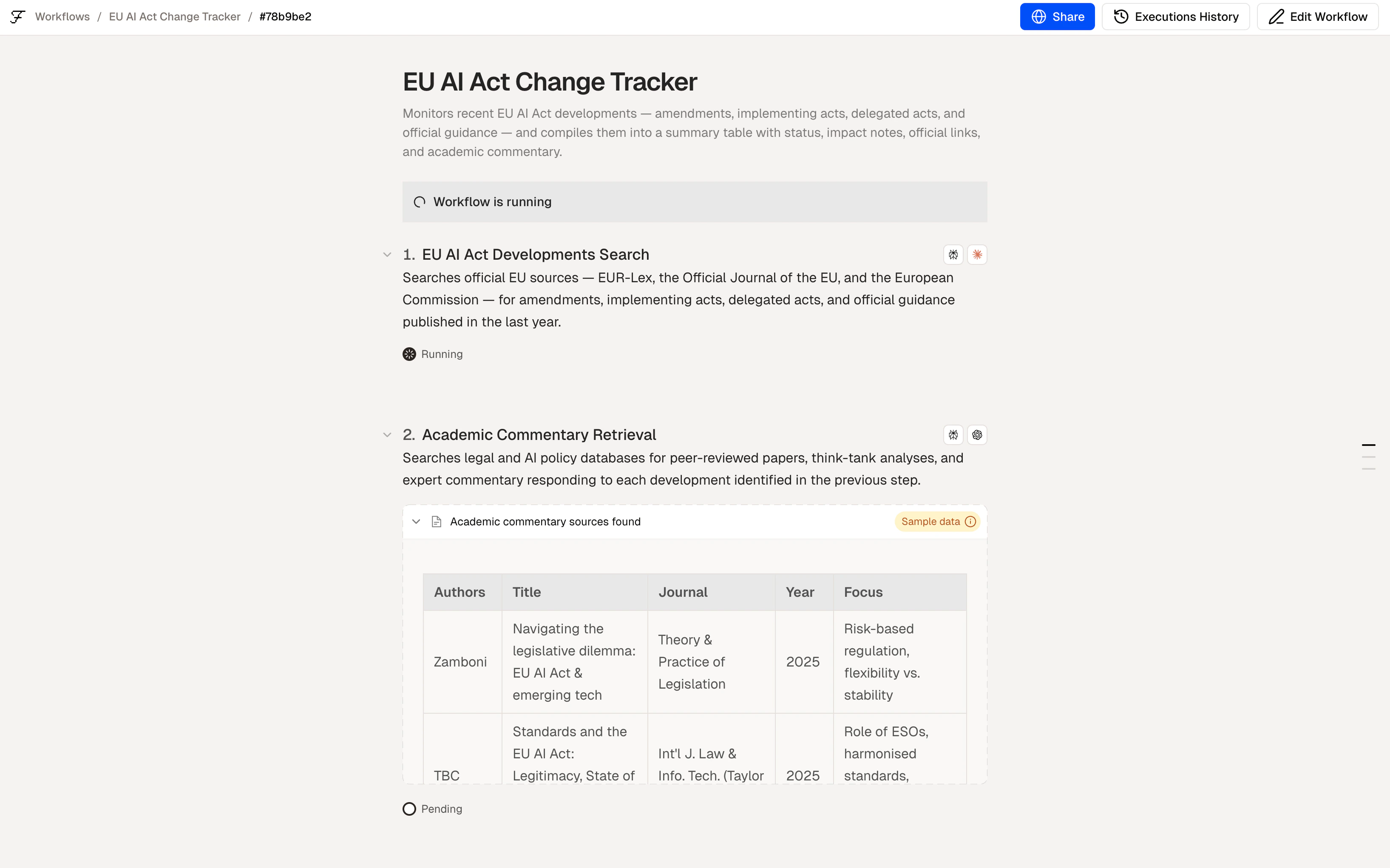 If a step fails, Felix shows you exactly where and why. Edit the step description and run again.
## 6. Run it again — automatically
Once your workflow is working, you can:
* **Run it manually** whenever you need it
* **Schedule it** to run automatically at a set time or interval
* **Run it as a batch** to process multiple items at once
See [Running](/docs/running/overview) for more.
## Example: 3-step workflow
| Step | Prompt |
| ---------- | ------------------------------------------------------------------------------------ |
| **Step 1** | Fetch all contracts uploaded to `@GoogleDrive` in the last 7 days |
| **Step 2** | Extract the parties, start date, end date, and termination clause from each contract |
| **Step 3** | Write the results to a new sheet in `@GoogleSheets` with one row per contract |
## Tips
* **Start simple.** Get one step working before adding more.
* **Be specific about outputs.** Tell Felix what format you need — a table, a CSV, a document, a notification.
* **Use `@mentions`** to reference connectors explicitly: `@Slack`, `@OpenAI`, `@GoogleDrive`.
* **Add Human Checkpoints** before any step that sends, publishes, or deletes — so you stay in control.
A closer look at the building flow
Connect your tools
Stay in control of automated actions
If a step fails, Felix shows you exactly where and why. Edit the step description and run again.
## 6. Run it again — automatically
Once your workflow is working, you can:
* **Run it manually** whenever you need it
* **Schedule it** to run automatically at a set time or interval
* **Run it as a batch** to process multiple items at once
See [Running](/docs/running/overview) for more.
## Example: 3-step workflow
| Step | Prompt |
| ---------- | ------------------------------------------------------------------------------------ |
| **Step 1** | Fetch all contracts uploaded to `@GoogleDrive` in the last 7 days |
| **Step 2** | Extract the parties, start date, end date, and termination clause from each contract |
| **Step 3** | Write the results to a new sheet in `@GoogleSheets` with one row per contract |
## Tips
* **Start simple.** Get one step working before adding more.
* **Be specific about outputs.** Tell Felix what format you need — a table, a CSV, a document, a notification.
* **Use `@mentions`** to reference connectors explicitly: `@Slack`, `@OpenAI`, `@GoogleDrive`.
* **Add Human Checkpoints** before any step that sends, publishes, or deletes — so you stay in control.
A closer look at the building flow
Connect your tools
Stay in control of automated actions