

When to use a batch run
- You have multiple items to process with the same workflow
- Processing them one at a time would be slow or impractical
- The items share the same structure
- Extract key clauses from 200 contracts uploaded to
@GoogleDrive - Screen 500 insurance applications against underwriting criteria
- Enrich a list of 1,000 company names with data from
@companies_house(custom connector)
How to run a batch
- Open the workflow
- Select Batch run from the Run dropdown menu
- Provide your input list — upload a CSV, connect to a data source, or paste a list of values
- Felix processes each item and collects the outputs into a single result
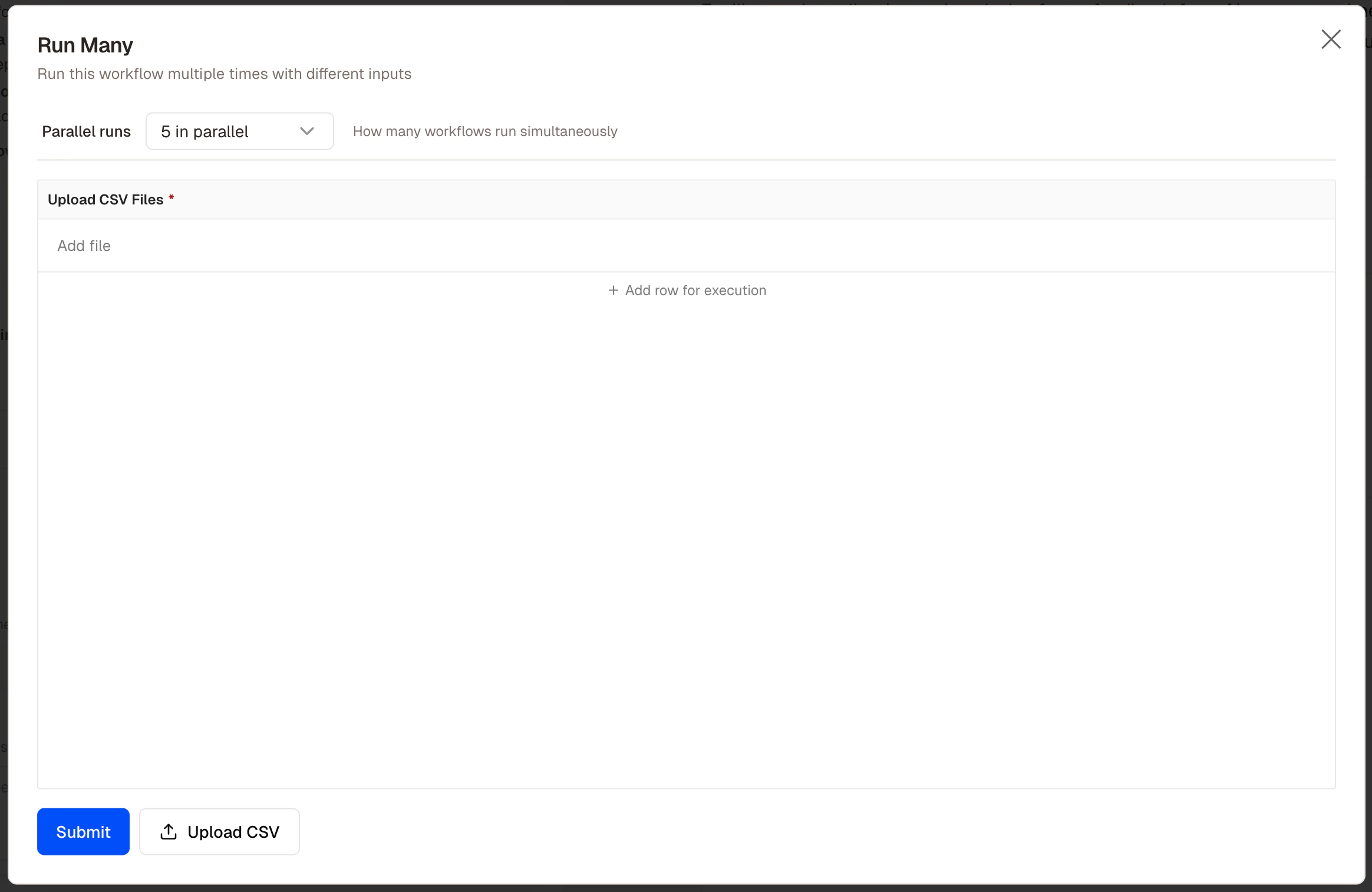
The batch run input screen
Structuring your input
CSV upload — one row per item, with column headers Felix uses as variable names.Human Checkpoints in batch runs
If a workflow includes a Human Checkpoint, execution pauses for each item when it reaches that step. For high-volume batches, consider an alternative:Tips
- Test on a small sample first. Run with 3–5 items before processing the full dataset.
- Keep input data clean. Missing values and inconsistent formatting are the most common cause of batch failures.
- Write outputs to a connected service. For large batches, writing directly to
@GoogleSheetsor@Notionis more practical than downloading a single large file. - Use exception-only checkpoints for volume. Pausing on every item defeats the purpose. Flag exceptions and review them as a group.