

Setting a schedule
- Open the workflow from your dashboard
- Select Schedule from the Run dropdown menu
- Choose a schedule:
- Click Turn on schedule
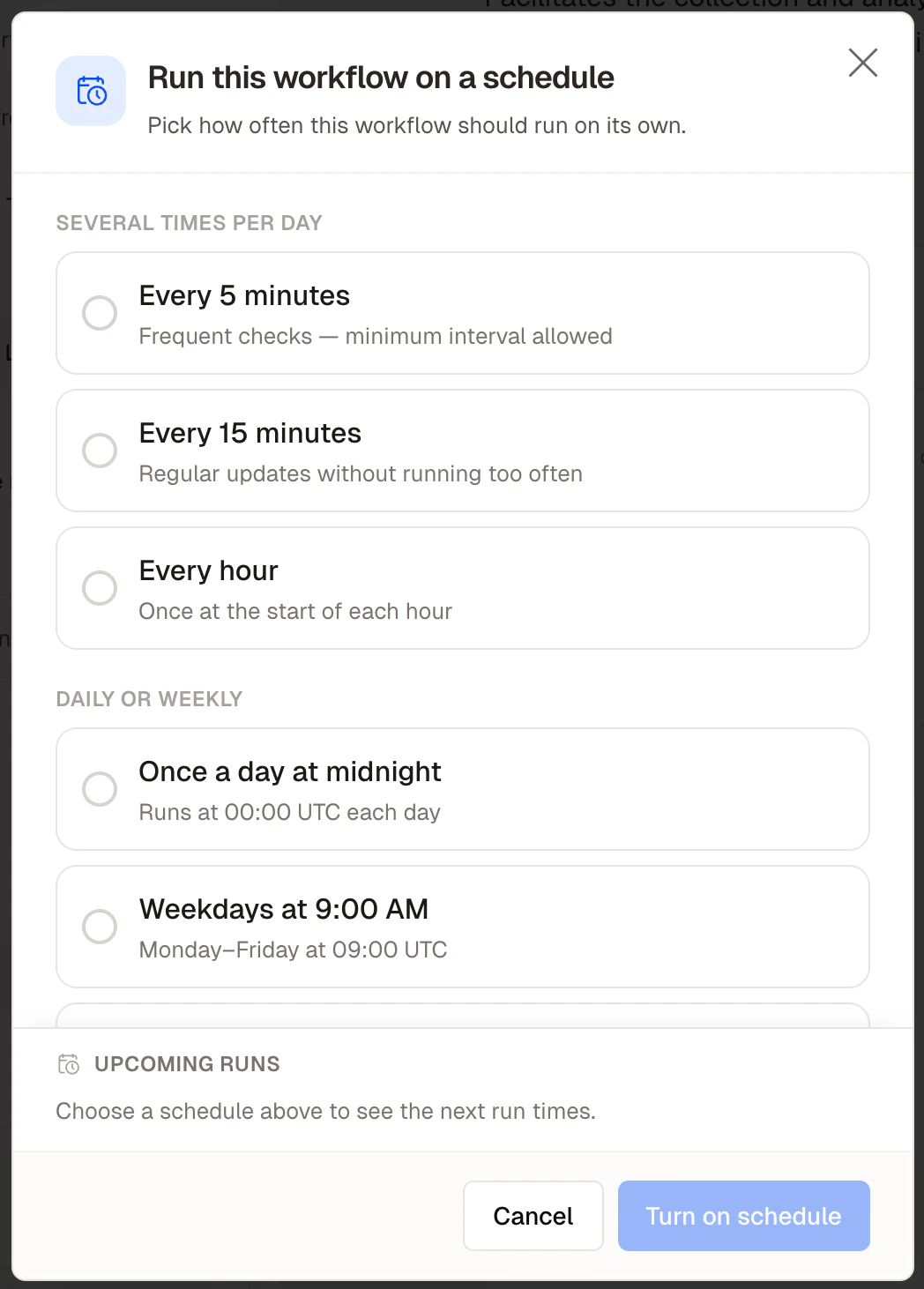
The schedule configuration dialog
How scheduled runs work
A scheduled run executes the workflow exactly as a manual run would. If the workflow includes a Human Checkpoint, the run pauses and Felix notifies the assigned person. The schedule continues as normal for future runs regardless of whether the paused run has been completed.Pausing and stopping a schedule
- Pause — temporarily stop scheduled runs without deleting the schedule. Resume at any time.
- Delete — remove the schedule permanently. The workflow itself is not affected.
Monitoring scheduled runs
All scheduled runs appear in the workflow’s run history. If a scheduled run fails, Felix logs the error. The schedule continues — the next run triggers at the next scheduled time regardless.Felix does not currently send automatic notifications when a scheduled run fails. Check your run
history periodically or add a Human Checkpoint to surface failures for review.
Tips
- Test manually before scheduling. Confirm the output is correct before automating.
- Match the schedule to the data. If your workflow fetches data from the last 24 hours, a daily schedule makes sense.
- Use cron for precise timing. Weekdays only, twice a day, last day of the month — use a custom cron expression.